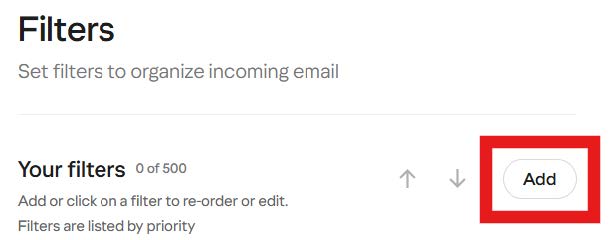
How to Whitelist PD Registry Helpdesk Emails

Click on your Email Client to go to the Tip Sheet:

Gmail

1

Open Gmail in the desktop website by going to: mail.google.com

NOTE: You cannot create a filter in the Gmail app.

2

Click the gear icon to open Settings:

Gmail inbox with the settings gear icon highlighted to open quick settings.

3

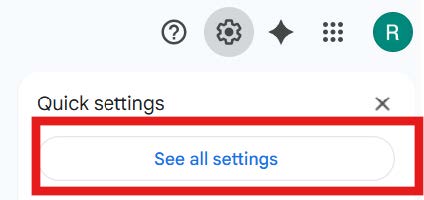
Click ‘See all Settings’:

Gmail quick settings panel with the ‘See all settings’ button highlighted.

4

Click Filters and Blocked Addresses:

Gmail Settings page with the ‘Filters and Blocked Addresses’ tab highlighted.

5

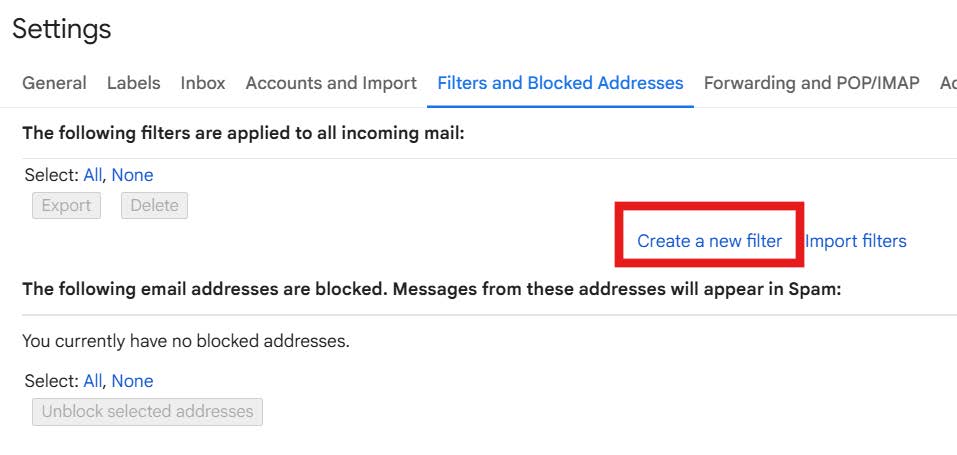
Click Create a new filter:

Gmail Filters and Blocked Addresses settings page with ‘Create a new filter’ highlighted.

6

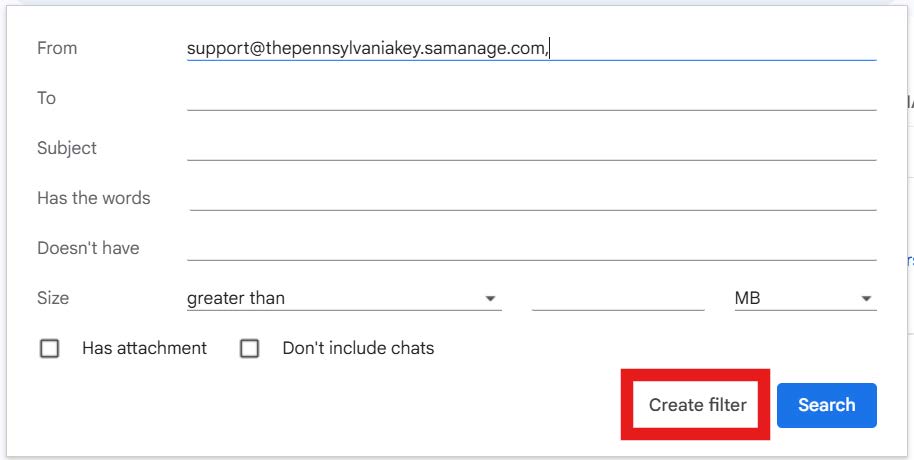
Type the PA Key email address in the ‘From’ section: support@thepennsylvaniakey.samanage.com:
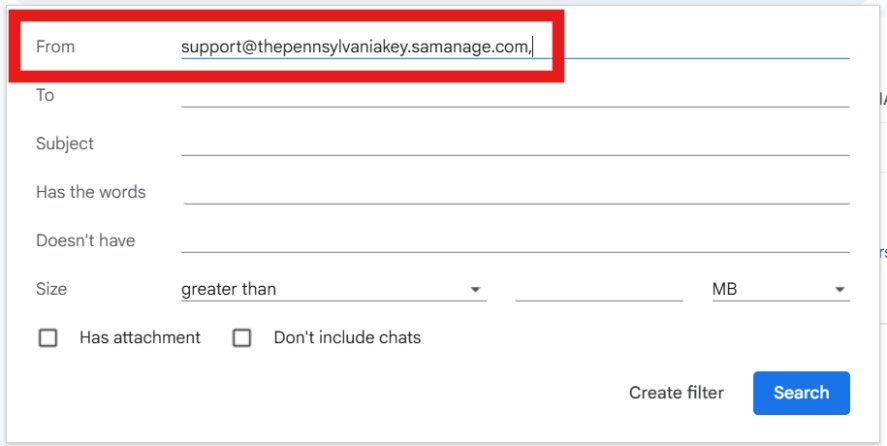
Gmail filter creation window with the email address highlighted in the ‘From’ field.

7

Click the Create filter button.

Gmail filter setup screen showing the ‘From’ field populated with an email address and the ‘Create filter’ button highlighted.

8

Check the box for ‘Never send it to Spam’ and then click the Create Filter button:
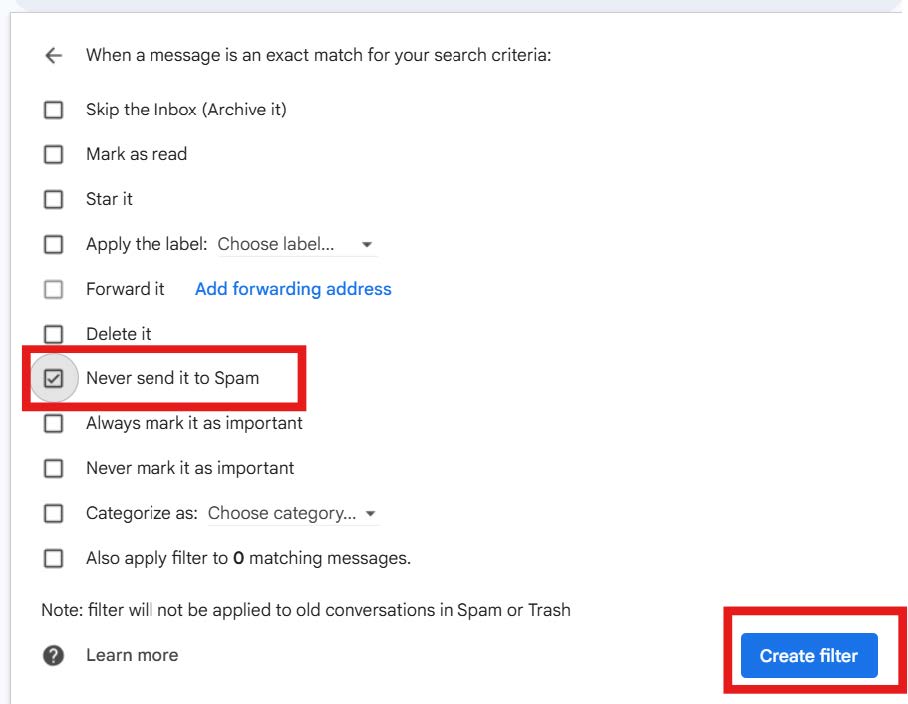
Gmail filter action options with ‘Never send it to Spam’ checked and the ‘Create filter’ button highlighted.

Outlook - Website

1

Open the Microsoft Outlook website: outlook.live.com/mail/0

2

Click the gear icon to open Settings:
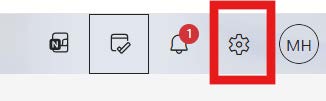
Outlook toolbar with the settings gear icon highlighted.

3

Click Mail and then select Junk email:
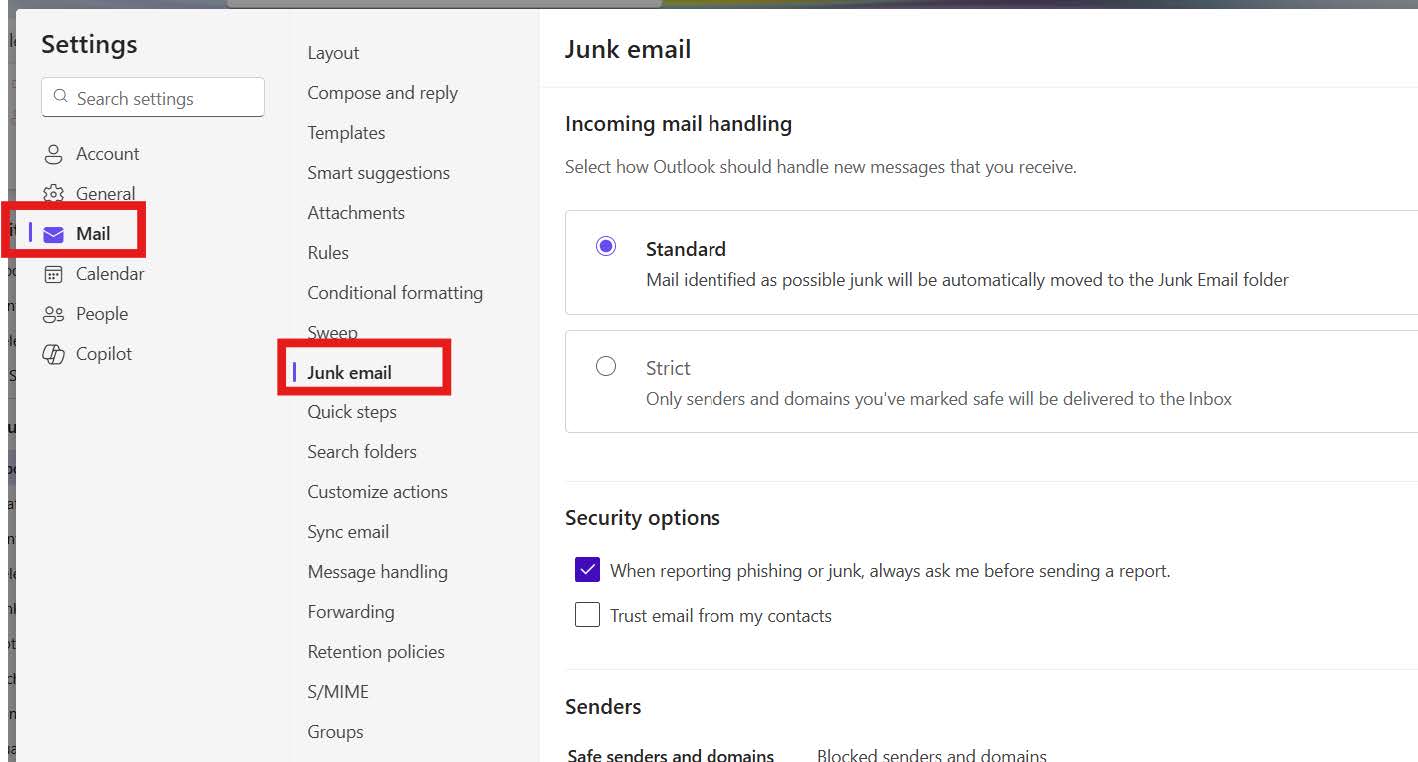
Outlook Settings page with ‘Mail’ and ‘Junk email’ selected in the left navigation menu.

4

In the Senders section, click +Add safe sender:

The Junk email settings page showing the ‘Add safe sender’ option highlighted.

5

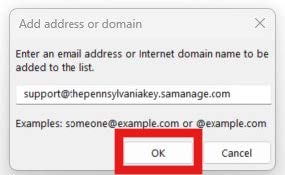
Type support@thepennsylvaniakey.samanage.com in the textbox and click OK:

Safe sender input box with an email address highlighted and the ‘OK’ button emphasized.

6

Click Save:

Outlook Junk email settings page with the ‘Save’ button highlighted.

Outlook - Desktop Only

1

Open the Microsoft Outlook Desktop app and click the Junk folder in your Inbox:
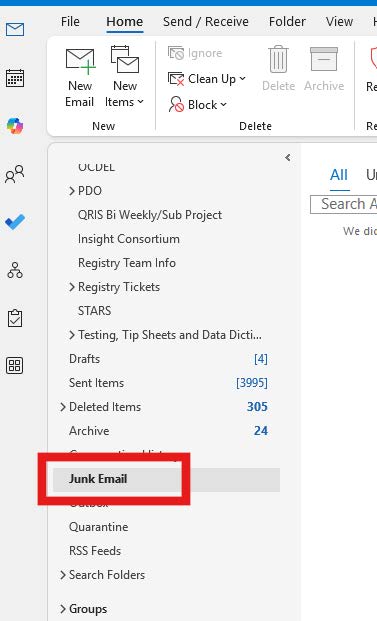
Outlook folder list with the ‘Junk Email’ folder highlighted.

2

Click Block and select Junk E-mail Options:
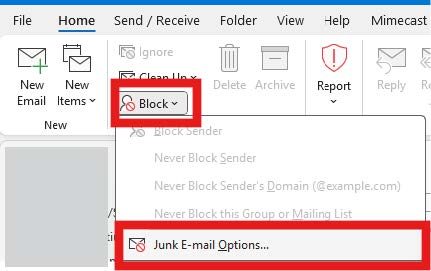
Outlook Home ribbon showing the Block menu expanded with ‘Junk E‑mail Options’ highlighted.

3

Click the Safe Senders tab and click Add:
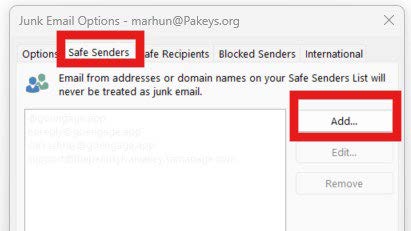
Junk Email Options window with the ‘Safe Senders’ tab and the ‘Add’ button highlighted.

5

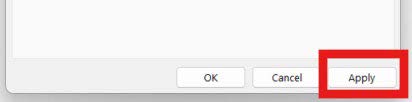
Click Apply:

Junk Email Options window with the ‘Apply’ button highlighted.

Outlook with Mimecast

1

Open the Microsoft Outlook Desktop app and click the Mimecast tab in your ribbon:
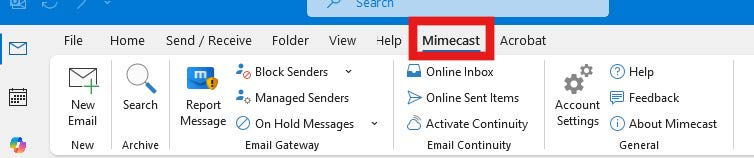
Outlook menu bar with the Mimecast tab highlighted.

2

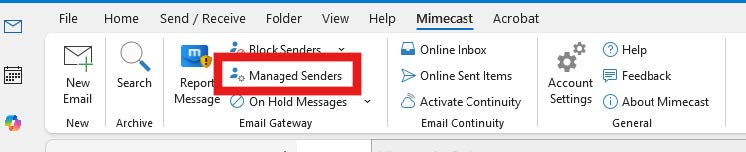
Click Managed Senders:

Mimecast menu expanded with the ‘Managed Senders’ option highlighted.

3

Click Permitted under Managed Senders and click +Add Permitted:
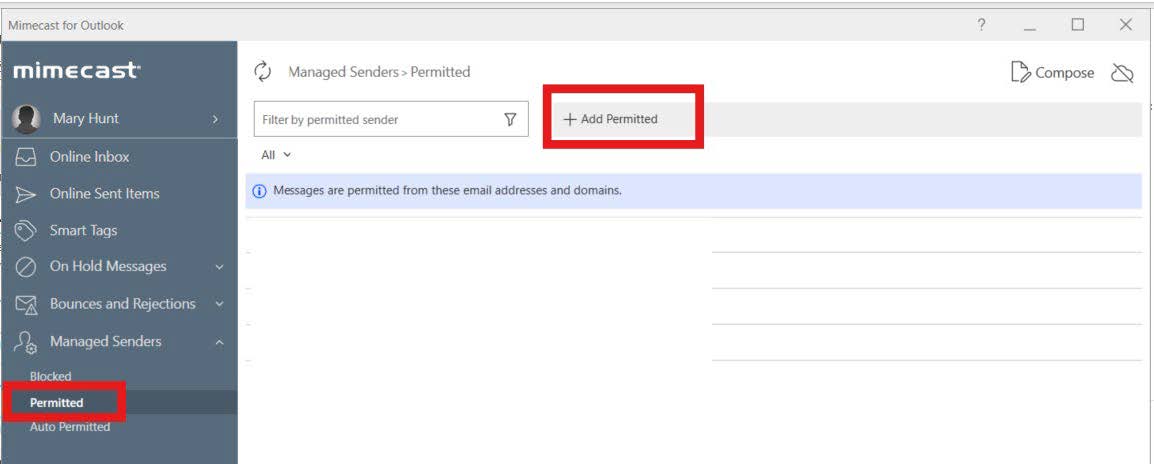
Mimecast for Outlook window with ‘Permitted’ selected in the sidebar and the ‘Add Permitted’ button highlighted.

4

Type support@thepennsylvaniakey.samanage.com in the box and click Add. Click the Permit button at the bottom:
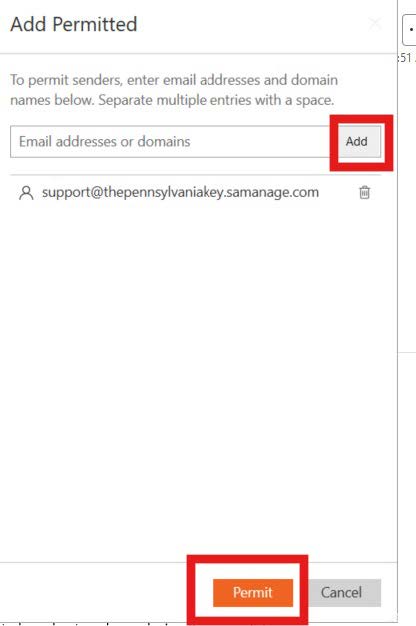
Add Permitted window with an email address entered, the ‘Add’ button highlighted, and the ‘Permit’ button emphasized.

Apple Mail

1

Click on the Mail tab and then Preferences:
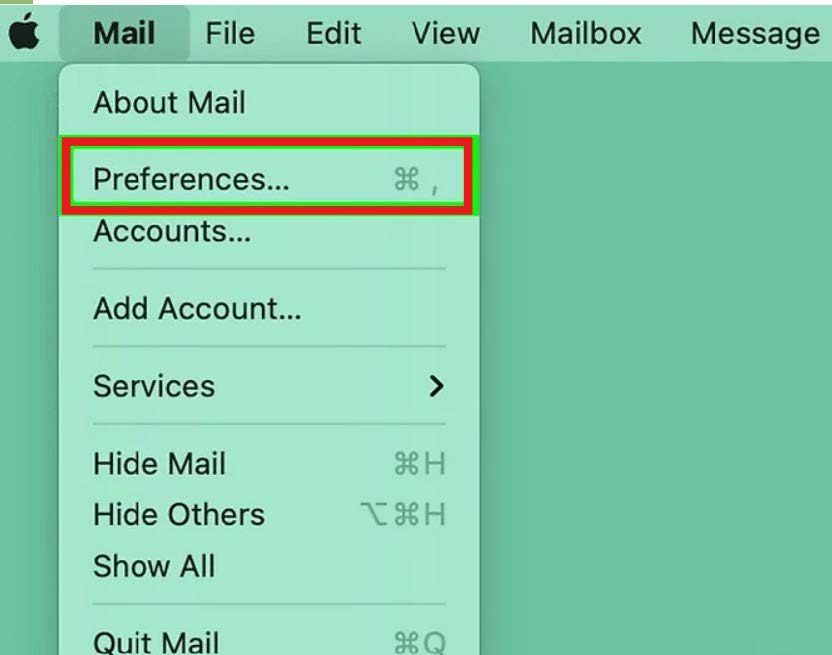
Mac Mail menu bar with the Preferences option highlighted.

2

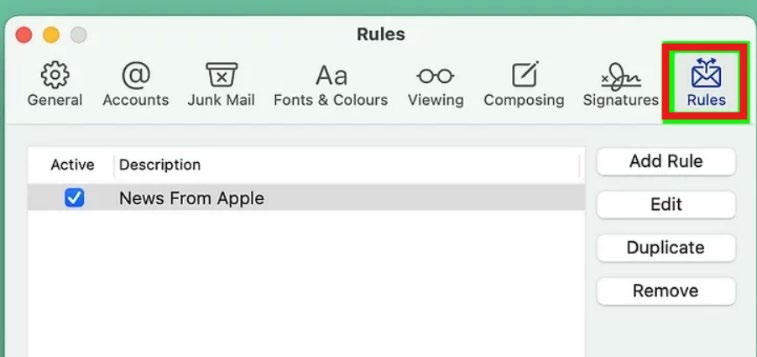
Click on the Rules button:

Mac Mail Preferences window open to the Rules tab with the Rules icon highlighted.

3

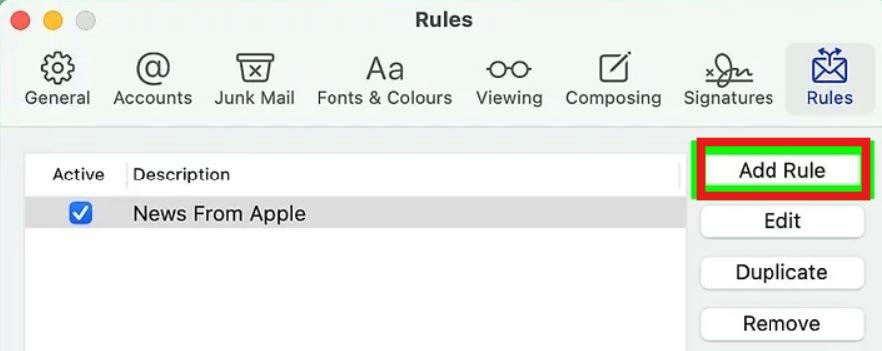
Click the Add Rule button:

Rules window showing existing mail rules with the Add Rule button highlighted.

4

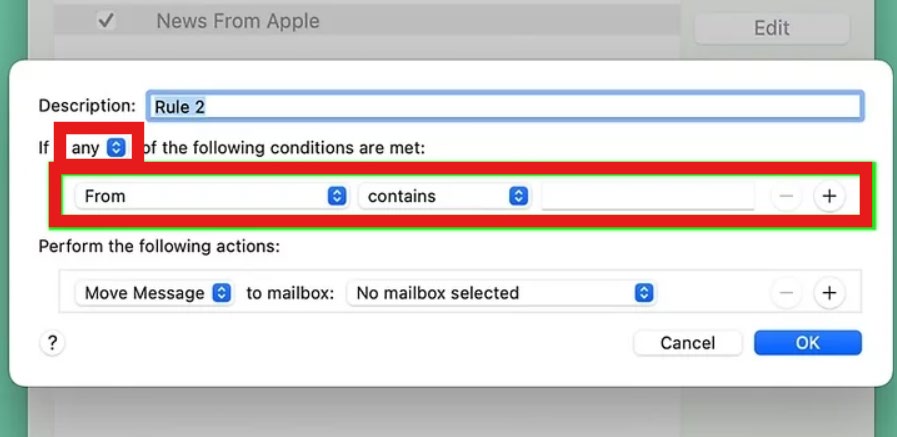
Set the criteria for the Rule:

  • Select Any for the ‘following conditions…’ section.
  • Select From in the sending/receiving drop-down.
  • Select Contains in the Sending/Receiving drop-down.
  • Type support@thepennsylvaniakey.samanage.com in the email address box.

Rule creation window with the ‘From contains’ condition highlighted.

5

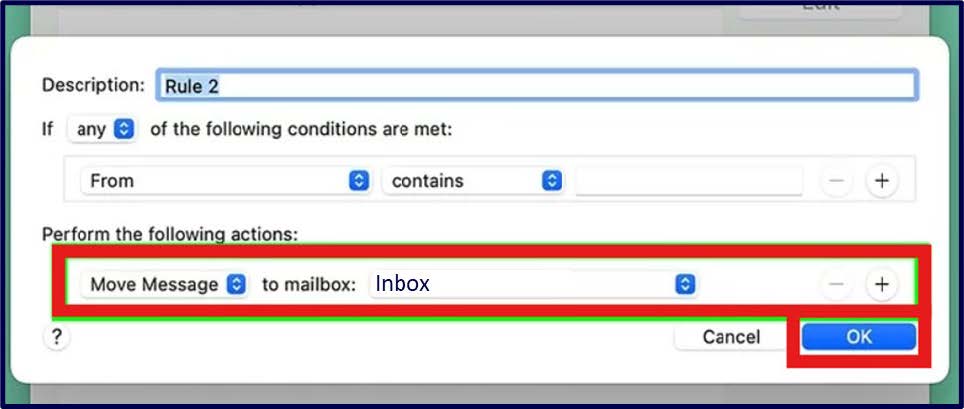
Set the action for the Rule:

  • Select Move Message in the ‘Perform the following actions’ section.
  • Select Inbox as the destination folder.

Rule creation window with the ‘Move Message to Inbox’ action highlighted and the OK button emphasized.

6

Click Ok.

Yahoo

1

Go to the Yahoo mail website mail.yahoo.com and click Settings.
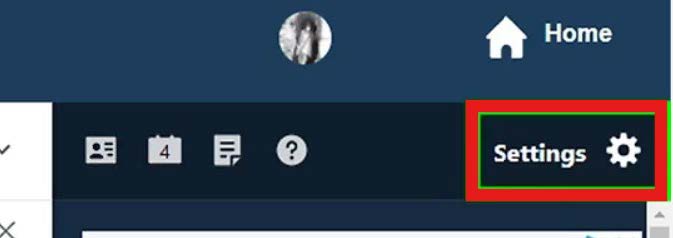
Yahoo Mail sidebar with the More menu expanded and the Settings option highlighted.

2

You can also go to More and select Settings:
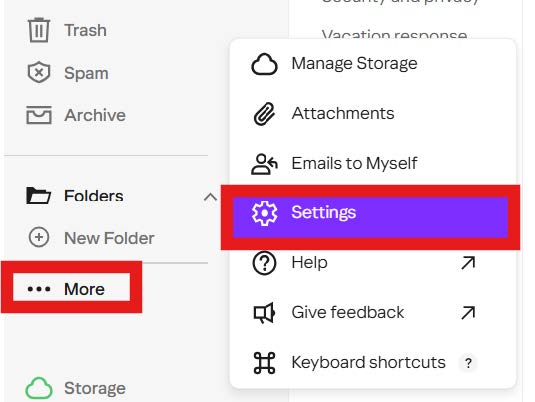
Yahoo Mail Settings page with the Filters option highlighted in the left menu.

3

Click Filters:

Yahoo Mail Filters page with the Add button highlighted.

4

Click Add:

Create filter screen with the Filter name field highlighted.

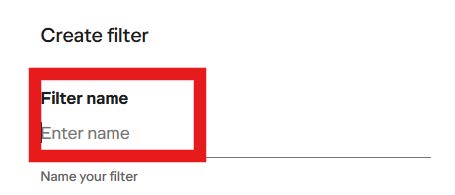
5

Type a Name for your filter (ex. Whitelist, Safe Senders):
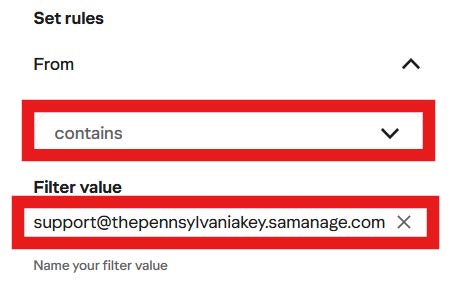
Set rules section showing ‘From contains’ and the filter value field highlighted.

6

In the ‘From’ section, select contains from the drop-down. Type support@thepennsylvaniakey.samanage.com for the Filter value:
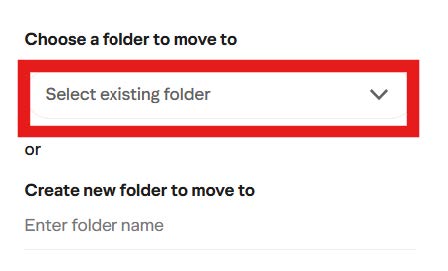
Create filter screen with the folder selection dropdown highlighted.

7

Select a folder to move messages or create a new one:
Save button highlighted on the Yahoo Mail filter creation screen.

8

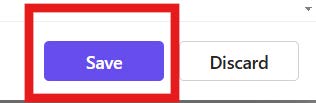
Click Save:

Yahoo Mail interface with the Settings button highlighted in the upper right corner.

Contact

The PD Registry
registry@pakeys.org

1-800-284-6031