 Created in 2007 by the Pennsylvania Office of Child Development and Early Learning (OCDEL), The Pennsylvania Key implements the work and supports the policies developed and managed by OCDEL. Learn More. >
Created in 2007 by the Pennsylvania Office of Child Development and Early Learning (OCDEL), The Pennsylvania Key implements the work and supports the policies developed and managed by OCDEL. Learn More. >
Created in 2007 by the Pennsylvania Office of Child Development and Early Learning (OCDEL), The Pennsylvania Key implements the work and supports the policies developed and managed by OCDEL. Learn More. >This tip sheet is for Center, Family, and Group Home Programs. Before claiming your organization profile, you will need a personal profile and your login information.
The below steps should only be completed by the Operator/Director/Owner of the Program/Facility. By registering your Program/Facility, you will have access to your Program/Facility within your organization profile and will have access to verify staff employment, create classrooms, and view staff reports to track hire dates, roles, professional development (PD) taken, PD Plans/Self-Assessments, and more.
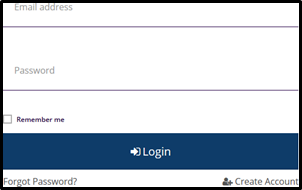
Click Login in the top right corner.

Enter your email address and password, then click Login.
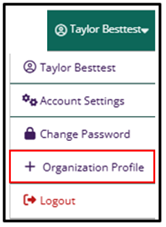
Once you log in, click on the dropdown menu on the right top under name, and click + Organization Profile.
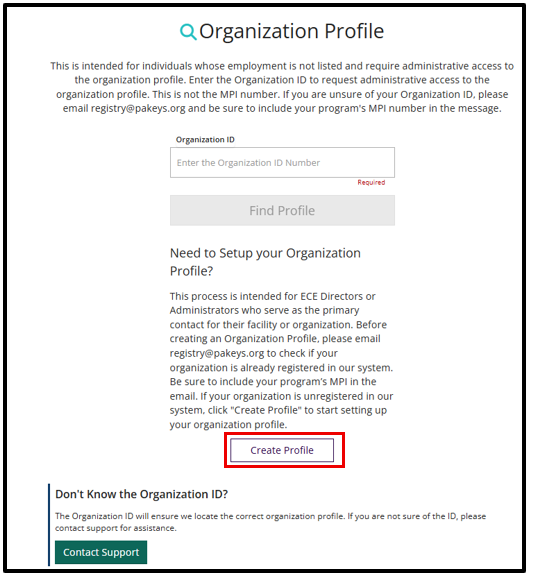
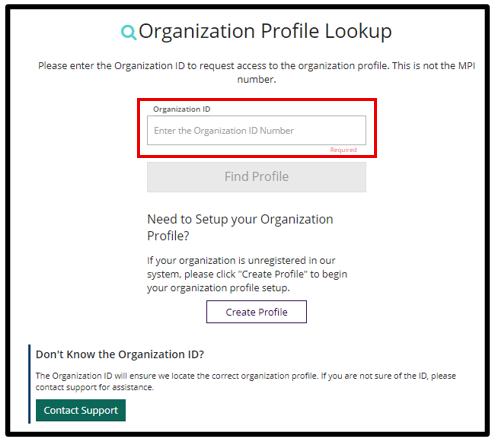
To claim, or register an organization profile, click Create Profile.
Enter Contact Information AND check ‘Yes, this organization provides direct care and/or education to children’. Click Next.

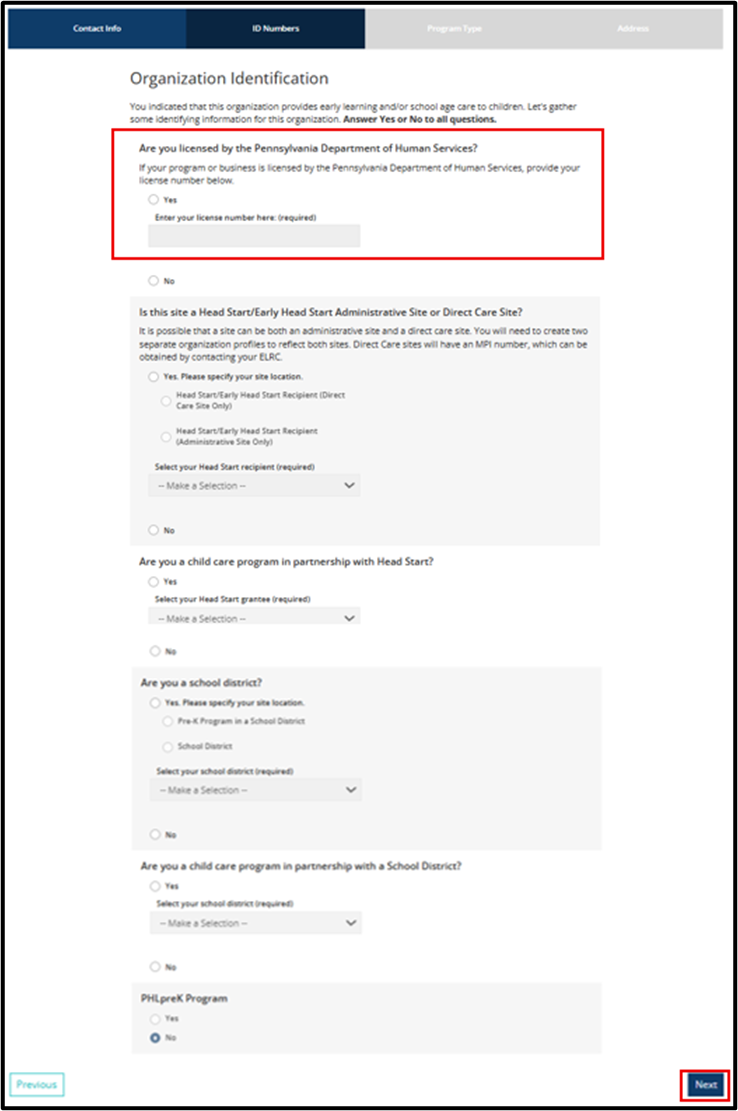
Select Yes and enter your MPI Number (located on Certificate of Compliance). Complete any other applicable information. Click Next.
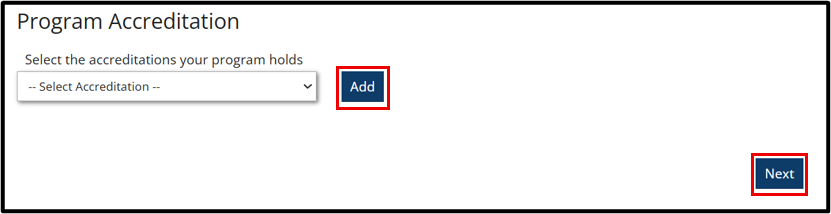
Add any Program Accreditations such as National Association for Family Child Care (NAFCC) that your Facility/Program may have. Click Next.
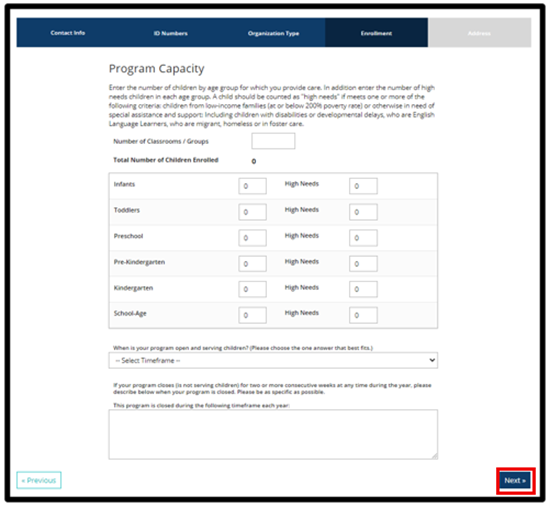
Complete the Enrollment Information. Click Next.
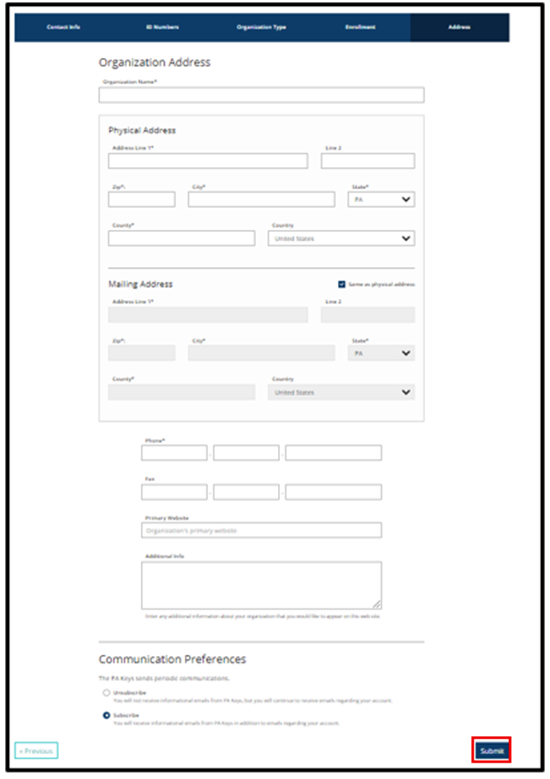
Complete the Facility/Program Address Information. Click Submit.
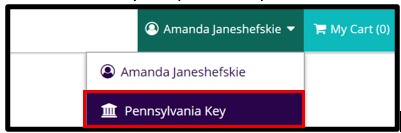
After you submit your Program/Facility Profile Application, you can expect an email within 2-3 business days letting you know if your Program/Facility organization profile has been approved. Once it has been approved, you will have administrative access to your Program/Facility organization profile in the upper right-hand corner in your personal profile.
Once an organization profile is registered, administrative access can be requested. To request administrative access to a registered organization profile, enter the Organization ID and click Find Profile to request administrative access to the organization profile. This is not the MPI number. If you do not know your Organization ID#, please email registry@pakeys.org.
The PD Registry
registry@pakeys.org
1-800-284-6031